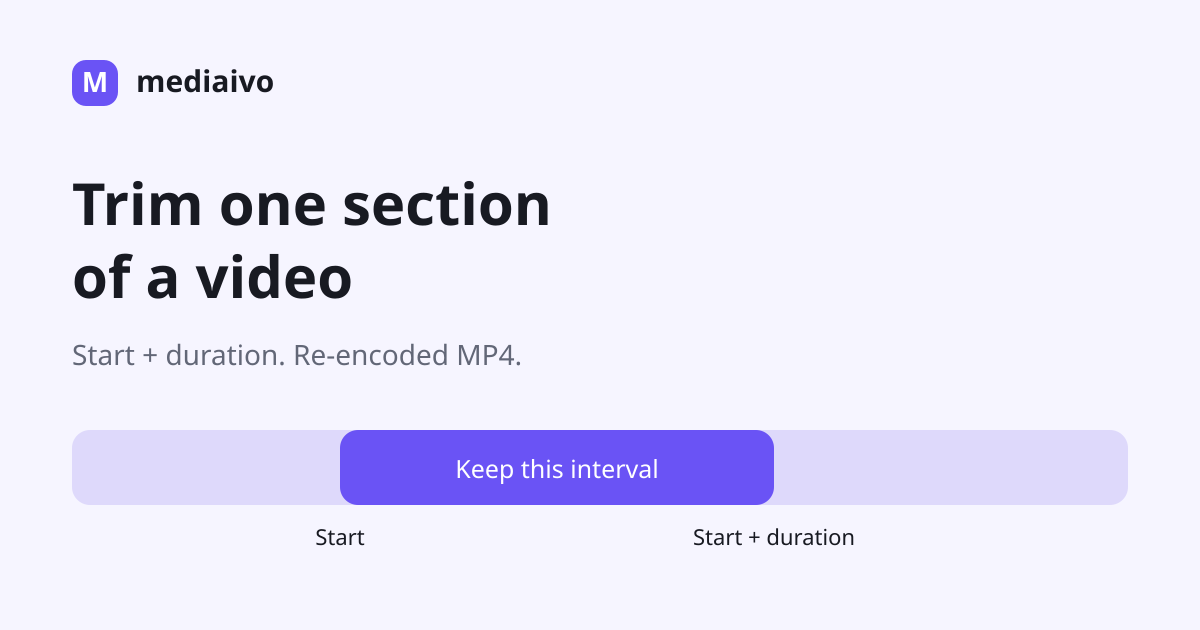
To trim a video cleanly, note the exact start time and the length of the section you want to keep, then check both cut points after processing. Mediaivo keeps one continuous interval and always re-encodes it as H.264 video with AAC audio in an MP4. This is not a lossless cut. Removing a middle interval and joining the remaining parts requires a separate editor with a join operation.
Cut a video to the useful section
Enter a start time and duration, process the clip and download the trimmed copy.
Start time and duration explained
Mediaivo asks for a start time and a duration. If a useful section begins at 12.5 seconds and should run for 20 seconds, enter 12.5 as the start and 20 as the duration. The new clip will end around 32.5 seconds in the source timeline.
Accurate timing matters most around words, music beats, transitions and fast actions. Cutting exactly on the first visible movement can feel abrupt, while leaving too much empty time makes the edit look unfinished.
Trimming creates a delivery copy. Keep the original source in case you later need a longer version or a different cut.
How to trim a video with Mediaivo
- Preview the source
Write down the moment the useful section starts and the moment it should finish.
- Calculate the duration
Subtract the start time from the desired end time. A section from 12 to 37 seconds has a duration of 25 seconds.
- Enter the values
Use decimal seconds when a more precise cut is needed, then process the file.
- Review both boundaries
Watch the first and last few seconds with sound to confirm that words, fades and movements are complete.
How much space should you leave around the cut?
The ideal boundary depends on what happens at the beginning and end of the kept section.
| Situation | Recommended choice | Check before publishing |
|---|---|---|
| Spoken sentence | Leave enough time for the first and final word | Listen with headphones for clipped consonants. |
| Music or beat-based clip | Cut on a natural beat or completed phrase | Check for clicks, abrupt fades or broken rhythm. |
| Action or screen recording | Begin before the action and end after the result | Confirm viewers can understand cause and outcome. |
What trimming changes in this tool
A shorter clip contains fewer frames and less audio, so removing unused time can save substantial space without asking the remaining scene to carry less detail. It is usually worth trimming before compressing.
Mediaivo re-encodes every trim. Compare moving detail, small text and sound with the original; output size can change because encoding changes as well as duration. Create each new cut from the original rather than from a previous trim.
Common mistakes to avoid
1. Confusing end time with duration
If the clip starts at 20 seconds and should end at 50, the duration is 30 seconds—not 50.
2. Cutting speech too tightly
Small timing errors can remove the start of a word or make a sentence feel unnatural.
3. Checking without sound
A visual cut can look fine while the audio starts late or ends abruptly.
4. Replacing the master file
A trimmed clip is a version for a purpose, not a substitute for the full original.
Final check before downloading or publishing
- Start time matches the intended first moment.
- The duration reaches the complete ending.
- Speech and music are not clipped.
- The clip plays through without a frozen ending.
- The filename clearly identifies the trimmed version.
Frequently asked questions
How do I calculate trim duration?
Subtract the desired start time from the desired end time. For example, 48 seconds minus 18 seconds gives a 30-second duration.
Does trimming lower video quality?
This tool re-encodes the retained section to H.264/AAC MP4, so it can change quality. It has no lossless stream-copy option. Keep the original and compare the downloaded cut.
Can trimming make a video small enough to email?
It can help significantly when unused footage is removed. If the useful clip is still large, compress the trimmed copy afterward.
Can I restore the removed section later?
Not from the trimmed output. Keep the original video so you can make another cut whenever needed.
Keep only the part your audience needs
Set the start and duration, then check the cut with sound before sharing.
Check the actual output
Checked 2026-10-10 with ffmpeg version 7.1.5-0+deb13u1 Copyright (c) 2000-2026 the FFmpeg developers. These are original synthetic files, released under CC0 reuse terms. Executed the repository commandFor and runFfmpeg functions locally. Measurements by FFprobe and filesystem bytes; no production upload, physical device or subjective speech-quality test.
trim video
Settings: start: 1.5; duration: 2
Keeps one interval from source time 1.5 to approximately 3.5 seconds. H.264 video and AAC audio are re-encoded. Synthetic tone, not speech; inspect your own cut boundaries.
Download input · Download actual output · Exact commands, measurements and SHA-256 hashes
Open trim video and use the input and settings above.
| Check | Input | Output |
|---|---|---|
| Bytes | 1,033,039 | 212,916 |
| Dimensions / duration | 640 × 360 | 640 × 360 |
| Codecs | h264, aac | h264, aac |
Decoded boundary frames: first frame · last frame. Markers show the source clock, not the output timeline. Start playback at low device volume.


This check establishes the recorded behavior for these inputs. It does not prove acceptable quality for faces, text, speech, music, every codec or a particular phone. Compare your own result before sharing.