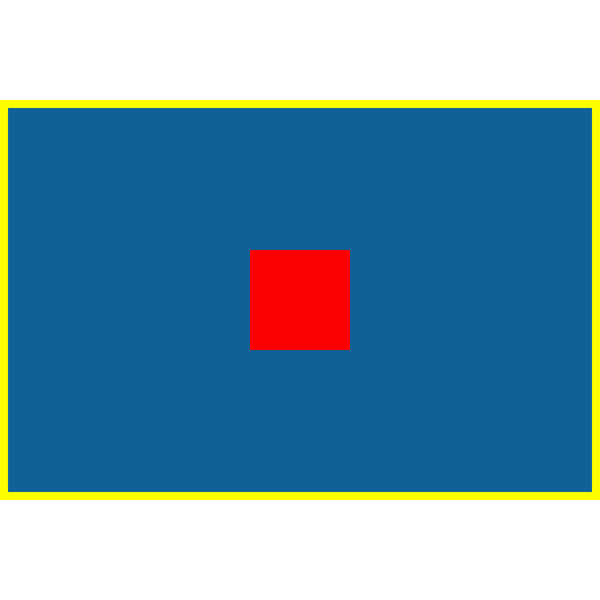
Enter the canvas width and height. Mediaivo preserves the whole image in proportion and adds white padding when the source and canvas have different shapes. For a landscape 1200 × 800 image on a 600 × 600 canvas, the picture becomes 600 × 400 with white bands above and below. If you want the canvas filled edge to edge, crop to a square first.
Resize an image to exact pixels
Enter the required width and height and download a new resized copy.
Resolution and aspect ratio explained
Resolution describes the pixel dimensions, such as 1600 × 900. Aspect ratio describes the shape, in this case 16:9. Different resolutions can share the same ratio and resize without distortion.
This tool fits rather than stretches. A mismatched aspect ratio leaves white padding. To fill a square without padding, use Crop Image to choose a square region, then resize that copy. Cropping removes edge content.
Downscaling removes pixels and often produces a cleaner web asset. Upscaling spreads existing information across more pixels and can make softness more obvious.
How to resize an image with Mediaivo
- Find the required dimensions
Check the website, shop, document or publishing destination before choosing values.
- Calculate a matching height or width
Use the Aspect Ratio Calculator when only one new dimension is known.
- Enter the pixel values
Use width and height for the final canvas. White padding is expected when ratios differ. This tool exports a still image, not an animated resize.
- Inspect the result
Check proportions, small text, product edges and overall sharpness at display size.
Resize, crop or both?
Choose the operation based on whether the destination shape matches the source.
| Situation | Recommended choice | Check before publishing |
|---|---|---|
| Same aspect ratio, smaller display | Resize only | Check sharpness and fine text after downscaling. |
| Different aspect ratio | Crop first, then resize | Make sure the crop keeps the important subject. |
| Small source required at a larger size | Upscale cautiously | Expect limited improvement and inspect for softness. |
How to keep resized images sharp
Use the original file rather than a screenshot or social download. Resize once to the exact useful dimensions and avoid passing the output through repeated conversions.
View the result at 100% zoom and inside its real page or product card. Oversharpening can create halos, while insufficient source detail cannot be repaired by a larger export.
Common mistakes to avoid
1. Entering an unrelated width and height
In this tool, a different ratio adds white padding. Crop first only if you accept losing the outer edges.
2. Upscaling because bigger sounds better
More pixels do not automatically mean more real detail.
3. Using display size as a guess
Confirm the destination requirement to avoid an asset that is still too large or too small.
4. Replacing the source file
Keep the original for future dimensions and crops.
Final check before downloading or publishing
- People and circles retain natural proportions.
- The output matches required pixel dimensions.
- Text remains readable.
- No important subject was unintentionally cropped.
- The image is not larger than the destination needs.
Frequently asked questions
How do I resize without stretching?
Mediaivo always preserves proportions. A different canvas ratio adds white padding; crop first if you prefer losing edges to adding borders.
Does resizing make an image smaller in file size?
Reducing dimensions usually reduces file size, although format and compression quality also matter.
Can I make a small image high resolution?
You can increase dimensions, but upscaling cannot recreate true fine detail absent from the source.
Should I crop or resize first?
When changing shape, crop the composition first and then resize the cropped result to the final dimensions.
Create the exact dimensions you need
Protect aspect ratio, avoid unnecessary upscaling and inspect the result at real display size.
Check the actual output
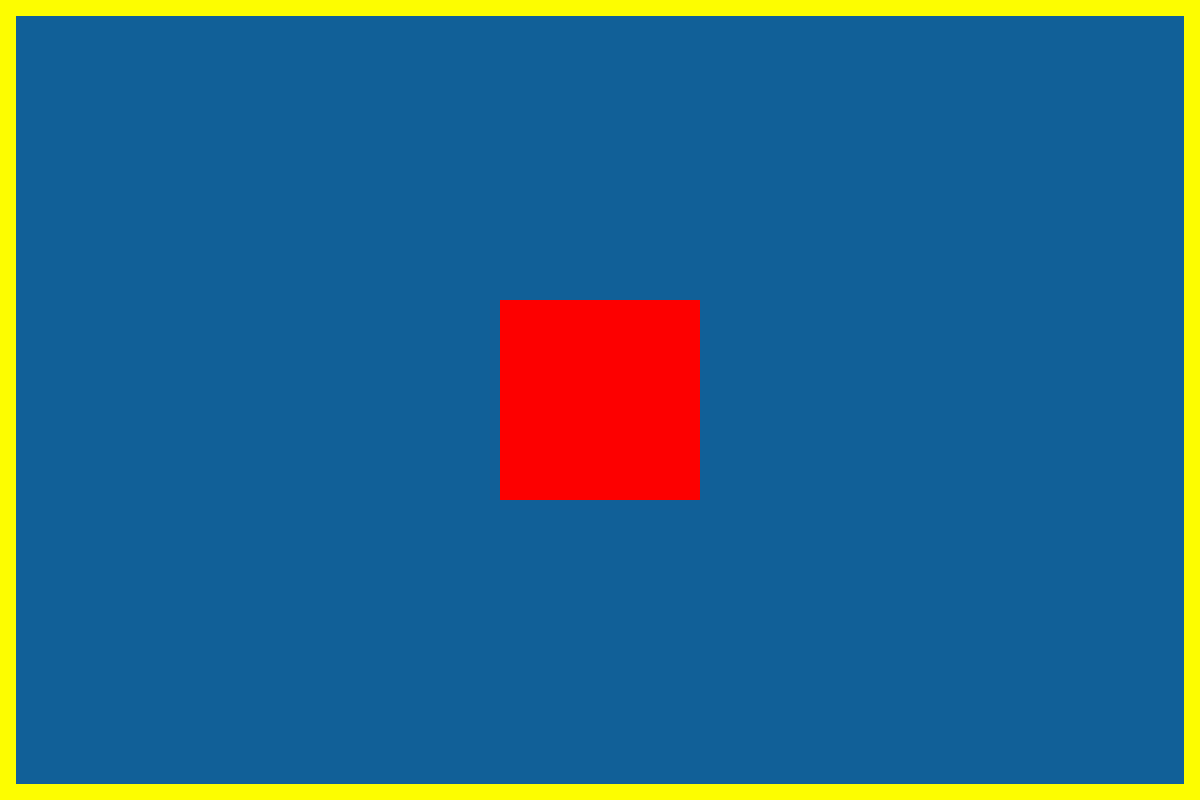
Checked 2026-10-10 with ffmpeg version 7.1.5-0+deb13u1 Copyright (c) 2000-2026 the FFmpeg developers. These are original synthetic files, released under CC0 reuse terms. Executed the repository commandFor and runFfmpeg functions locally. Measurements by FFprobe and filesystem bytes; no production upload, physical device or subjective speech-quality test.
resize image
Settings: width: 600; height: 600
The 1200 × 800 source becomes a 600 × 400 picture inside a 600 × 600 canvas with 100-pixel white bands above and below.
Download input · Download actual output · Exact commands, measurements and SHA-256 hashes
Open resize image and use the input and settings above.
| Check | Input | Output |
|---|---|---|
| Bytes | 5,613 | 3,536 |
| Dimensions / duration | 1200 × 800 | 600 × 600 |
| Codecs | png | png |
This check establishes the recorded behavior for these inputs. It does not prove acceptable quality for faces, text, speech, music, every codec or a particular phone. Compare your own result before sharing.