Fixed crop and pixel limits
The crop is one fixed rectangle for the full clip; it does not follow a moving subject. Video width and height round down to even pixels, so 721 × 721 becomes 720 × 720. Use whole-pixel offsets and keep the rectangle inside the source. The result is a re-encoded H.264/AAC MP4.
Set the crop width and height for the new frame, then use horizontal and vertical offsets to position that frame over the part of the source you want to keep. Cropping removes pixels outside the selected rectangle, so composition matters more than file size alone.
Crop an exact area from your video
Enter crop dimensions and offsets, then process a newly framed copy.
How crop width, height, X and Y work
Imagine the source as a coordinate grid. The top-left corner is X 0, Y 0. Increasing X moves the crop rectangle to the right; increasing Y moves it downward. Width and height determine how much of the source remains inside that rectangle.
A crop must stay inside the original frame. If the source is 1920 × 1080 and the crop is 1080 pixels wide, the horizontal offset cannot place part of that 1080-pixel rectangle beyond the right edge.
Cropping can change aspect ratio without stretching. A landscape source can become square or vertical, but some left and right content must be removed.
How to crop a video with Mediaivo
- Find the source dimensions
Inspect the video metadata so you know the maximum crop width, height and valid offset range.
- Choose the output shape
Set crop width and height according to the aspect ratio and subject area you need.
- Position with X and Y
Move the crop rectangle right or down until the subject is framed correctly.
- Review the entire clip
A moving subject can leave the crop later even when the first frame looks perfect.
Where should you place the crop?
Use the visual subject—not only mathematical centering—to decide the offsets.
| Situation | Recommended choice | Check before publishing |
|---|---|---|
| Single centered speaker | Center the crop around the face and shoulders | Watch the complete clip for body or camera movement. |
| Screen recording | Frame the interface area viewers must read | Confirm menus, cursor actions and text remain visible. |
| Off-centre product or action | Use X and Y to follow the important region | Check that motion never crosses the crop boundary. |
How to make a crop feel intentional
Leave breathing room around faces, products and text. A mathematically centered crop can still feel wrong if the subject looks toward one side or movement needs space to continue.
Review more than a thumbnail. Play the full output and pay special attention to camera pans, captions, lower-thirds and any object that approaches an edge.
Common mistakes to avoid
1. Using offsets outside the source
The crop rectangle must fit completely within the original width and height.
2. Checking only the opening frame
Subjects and captions may move outside the chosen area later in the clip.
3. Cutting too tightly around faces
Small movements can make an already tight frame uncomfortable or incomplete.
4. Using crop to fix distortion
Cropping changes the visible area; it does not repair a video that was previously stretched.
Final check before downloading or publishing
- The crop stays within source dimensions.
- Faces and text have safe edge space.
- Moving subjects remain visible.
- The new aspect ratio suits the destination.
- No required watermark or caption was removed.
Frequently asked questions
What do X and Y mean when cropping video?
X is the horizontal distance from the source left edge, and Y is the vertical distance from the top edge.
Does cropping stretch a video?
A correct crop removes outer pixels without stretching the kept area. Distortion occurs when width and height are forced into unrelated proportions afterward.
Can I crop landscape video into vertical video?
Yes, but a vertical crop removes substantial content from the left and right, so make sure the subject remains inside the selected area.
Why did the crop fail?
The selected width, height or offsets may place part of the crop outside the original frame.
Reframe the part that matters
Choose exact dimensions and offsets, then watch the complete cropped clip.
A media-processing example you can repeat
Checked September 9, 2026 using Mediaivo's processing functions and ffmpeg version 6.1.1-3ubuntu5 Copyright (c) 2000-2023 the FFmpeg developers. The source is an original synthetic test chart, with no personal data or third-party footage. Video is silent and three seconds long.
Settings: Crop width: 720; Crop height: 720; X offset: 280; Y offset: 0
Download input · Download reference output · Measurements and method
Run this example in the tool →
| Measurement | Input | Output |
|---|---|---|
| Bytes | 2334407 | 548283 |
| Pixels | 1280 × 720 | 720 × 720 |
| Video/image codec | h264 | h264 |
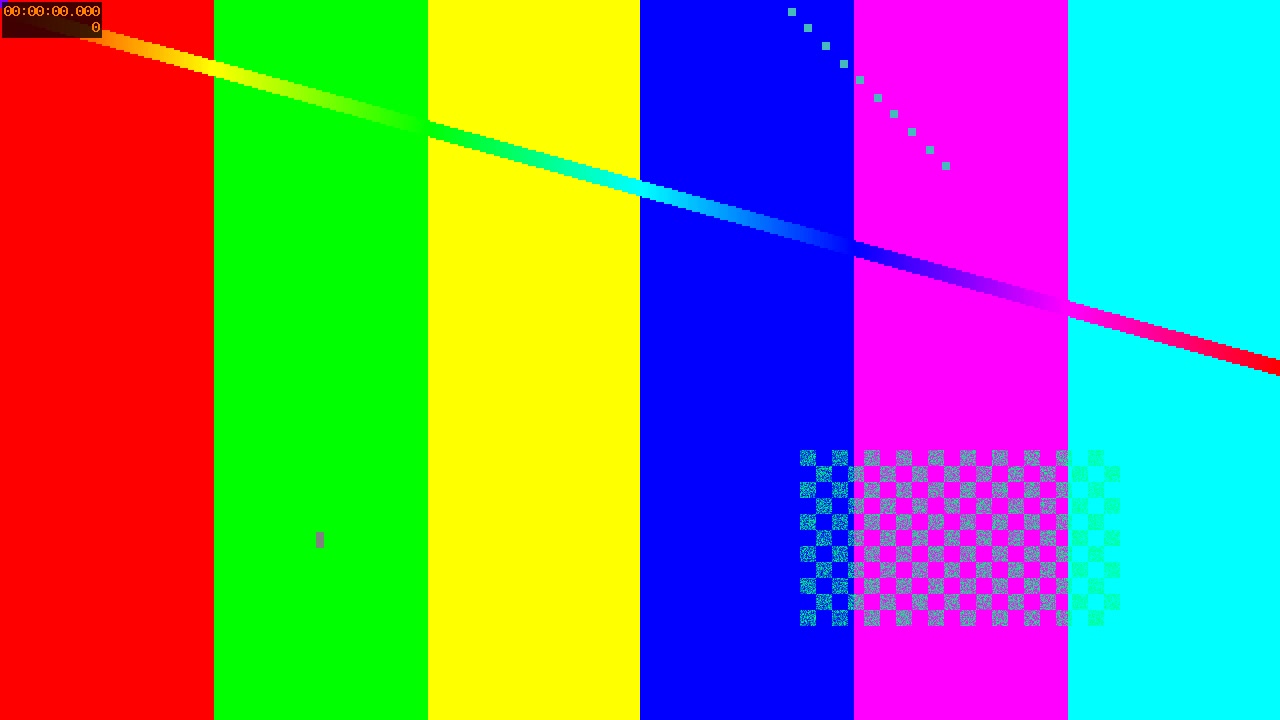
The center square retains the full height and removes 280 pixels from each side. Edge content disappears deliberately. Crop does not add padding.
A failed setting, and the correction
The same processor rejected a 1400 × 720 crop from this 1280 × 720 source because the crop was wider than the frame. The working setting above uses 720 × 720 at X 280, Y 0. For a taller destination that keeps every edge, use the padded resize example.